Tuesday, December 23, 2008

Happy Holidays

Merry Christmas everybody.


I'd like to thank everyone for all their support over the past few months as this blog has gotten off the ground. It's been fun and a great learning experience.


My first week at Erdman has given me some insight into the challenges of implementing Revit into a fairly large Design Build/Integrated Project Delivery firm. I'd have to say that they are not few and far between, however, they are definitely on their way. In the upcoming year,I hope to post some of the challenges that we face and the solutions we achieve. But for now, I just need to get home for Christmas through the wind and snow. Not looking forward to that 5 hr drive.


I hope the upcoming New Year treats you all well. Keep the faith. Let's make this a BIM-tastic Year!


Tuesday, December 16, 2008

Life in a Snow Globe


Well, loyal reader ( I assume there must be one or two) it has been a busy month. As is evidenced my lack of Blogging. I feel like I live in a snow globe that an excited 3yr old has just discovered.


In the first half of the month I was SWAMPED at work. Training for me, me training others, implementing Revit at a couple of clients offices.


The REAL Snowstorm started right before Thanksgiving. In short, the Autodesk Retailer that I was working for had to close it's doors forever due to the current economy. I know... WOW!


Luckily I was offered a job with a progressive Healthcare facility design/build firm. What a blessing. To go from employed, to unemployed, to employed again in the span of a week doesn't happen very often. And to have a career upgrade in the process ... Whoo Hoo!


So, yesterday was my first official day as a Engineering BIM Coordinator for Erdman (formerly Marshall Erdman and Associates.) From their website.


" Erdman (a Cogdell Spencer Company) is a fully integrated, single source provider of planning and programming, architectural design, engineering and construction, and development services. One firm, one vision."


Given that Erdman has recently moved it's corporate office to a new facility... and that they recently merged with another company... you would think that their plate was full. However, they (hmmmmm, we) are aggressively implementing BIM into their integrated process. I am excited to be a part of the process.


So along with the new position comes selling our house (the position is in Madison, WI) and moving the family (wife and 10 month old daughter)...


Ironically, as I sit here snow is falling outside my window. There is about 5 inches of snow on the ground and more seems to be coming. More exciting things to come...

Monday, November 3, 2008

Sketch in 3D

Man, talk about working the way we think... I waaaaannnttt this. Of course I want it to work directly with Revit.

Thanks to Harlan over at the Revit Clinic for bringing this to our attention.


ILoveSketch from Seok-Hyung Bae on Vimeo.

Machiavelli was an early adopter?

There is nothing more difficult to take in hand, more perilous to conduct, or more uncertain in its success, than to take the lead in the introduction of a new order of things. For the reformer has enemies in all those who profit by the
old order, and only lukewarm defenders in all those who would profit by the new order, this lukewarmness arising partly from fear of their adversaries … and partly from the incredulity of mankind, who do not truly believe in anything new until they have had actual experience of it.
– Niccolo Machiavelli

Doesn't this ring true to those of us involved in implementing the use of BIM, VDC, and IPD. No worries though, we are well on the way to "The Tipping Point."

Thursday, October 30, 2008

Save that View for later!

A lot of Revit users know that they can save Drafting views to a New File. This is a super useful way to build your library of Revit typical details.

The other day I found that same option available when you right click a MODEL View. Hmmmmm. What happens if I click that?

clip_image002

Well here's what happens:

clip_image002[8]

You get a new file (oh is that what they mean by Save as New File?) that only includes the view you saved. What is that view useful for? Well drafting views can be imported into a project, but NOT this. So, I really don't know what you could use this for? Maybe use it as a lightweight file you can email to allow a consultant/owner to view a specific condition. But I think I'll stick with a jpeg screen capture or a DWF.

What is included in this new file? It is a file that contains the parts of the model that are within the extents of the view element. The only views that are saved to the Project file are those that are referenced by our saved view. No Plan or Ceiling views, etc, etc. Just the Callout of the Section and the Section. You DO get the 3D view with a scope box defined by the saved view element.

clip_image002[10]

image

This is where most people would stop.

But... what happens if we stretch that scope box?

image

Hmmmmmmmm, What's happening here?

Lets look at the Section view that is referenced by the callout.

image

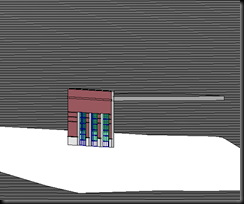
Notice that the Crop Region extends well past the the section of wall that was captured. However the wall itself stops at the level above and below the callout. What if we turn the scope box off? What else is in this thing?

image

Wow! The whole site? Really? There has to be a reason though.

image

There it is. The view extents of the referenced section touch the site.

What can we do to exclude some of this extra geometry from the file?

What if we don't use a "child" view like a callout? Crop down the extents of the Section and ... well you can't select the the option UNLESS there is some kind of 2D detail in the view. In this case I place a random detail component I'm sure you could use a detail line.

Lets see the result.

image

image

Nope, that's not it. Let's "Don't Crop" the resulting section.

image

OK one more try in a post that has grown totally out of control.

image

Maybe the fact that the wall extends to the level and the level intersects the topography.

Adding a level to the original project didn't fix it. And it didn't matter whether the level was within the extents of the the view to be saved or not.

Even moving the base constraint of the wall to the new level didn't help. Darn toposurface...

Eureka!!! Turn the Toposurface category OFF in the original view!!! Duh! The final product in all of its glory.

image

So what was the point of all this? Well, I think it's an interesting fact that you can save a model view (oh, but don't forget the 2D details component (yes, a line works)) to a separate file.

Interesting aside, I just can't leave well enough alone. I love to dig down and figure this Revit thing out. Sure I could have just gone through the process on my own and posted the results. Warning you that the view had to contain a 2D component and to turn off the topography (Still not sure why other categories that weren't within the extents of the original view didn't save as well.) But this way you were along for the ride and MAYBE it will inspire you to investigate that idea you have been thinking about in Revit.

This is basically what I do as an Application Specialist. Usually it is a little more focused on a clients specific problem and not always Revit based, but digging into the WHY is what I do... Give it a try, its NIFTY!

Sunday, October 26, 2008

First Snow Fall

It's snowing! I don't mean flurries, or little tiny flakes. It's not freezing rain or "sneet." It's BIG, WET flakes.
Forecast said chance of flurries this morning. We have a dusting on the BBQ cover.
Welcome to Minnesota. :)
Oh, and did I mention that its the weekend BEFORE halloween!!!

Thursday, October 9, 2008

Upside Down Revit Lights FIXED

Back in July, I posted a thread about lights hosting to reference planes UPSIDEDOWN here and here. I have wanted to post this fix for awhile. Reference planes have a top and a bottom. Light fixtures (and other objects) host to that "normal" surface. When you draw a plane from right to left, fixtures host correctly. When you draw them from left to right, the "normal" surface is up and the light hosts upside down... I guess in actuality the plane is upside down and the light is normal to it. Why host to a plane in the first place... well read the above links for more, but you could lose all of your work if the ceiling in a linked model is deleted and your hosted to it. However, it seems that has been fixed recently.

Anyway, enjoy my first JING video that tries to explain what happens.

Note: One of the issues in those past posts was that the System Family "Basic Ceiling: Generic" behaves like a reference plane. Unfortunately you don't get the chose how the ceiling gets placed in the model.


It seems that JING videos don't scale so I can't embed it. Follow the link.

Wednesday, October 1, 2008

Revit Rooms, Roofs, and the Penthouse Suite

Steve, over at RevitOpEd, posted a Stump-the-Chump question about a user not being able to place a room in the penthouse. Check out his post for the particulars then come back here for my explanation of what's happening...


Back? Good. So here's what I found:

The main roof seemed to be keeping the room from placing. If I raised the base of the Penthouse walls to be even with the top of the roof I could place the room.


If I offset the roof to be below the level I can place the room. If you could access the room’s “base offset” I think that you could raise that to the upper surface of the roof and you would be able to place the room, but I couldn't figure out how to access that parameter till after the room was placed, and if I changed it then, it didn't seem to matter.

So set the “base offset” of one wall (that’s all it took) to equal the roof thickness. This allowed me to place a room in the penthouse and outside the penthouse as well. Hmmmmmmm……


Now for the weirdness; I wanted to play with the rooms a little. I reset the “base offset” of the wall to 0’-0” and the room disappears. I figured that in AR (Actual Reality) you would never place a penthouse over the roof, you would have a floor there.

So I cut a hole in the roof and the room inside the penthouse appeared, but the one outside, did not. IF you look closely you will see that the second room is actually bound by the upper and lower surface of the roof.


I guess, since the room originates on the level... and roof is on the level... the room is “trapped” inside. I know the feeling… Sometimes I feel trapped in Revit. :)

I clearly spent WAAAY to much time on this. But, I can't help it... I LOOOOVVVVEEE Revit problems. It's kind of a stimulant that the logical mind just eats up. BTW, if you make the Main Roof not "bounding" the level acts as the base bounding plane for the room and the Upper Limit is what you set in the room parameters so the room displays correctly. That's what I would suggest as a fix for this particular problem, but that won't work if the room on the floor below is relying on the roof to be a bounding element. Cheers!

New Sustainable (Green) Design Forum at AUGI

AUGI has launched a new forum. It's tag line is:
Discuss this emerging focus on Design with the environment in mind.

Tuesday, September 30, 2008

64-Bit Revit

I hate to just link to other's Blogs, but since I brought it up yesterday, and since there doesn't seem to be an easy to find press release or announcement by ADSK, ... and since Scott does such a good job of explaining things... well... HERE.